
How to Start a YouTube Channel and Make Money for Beginners

This is how you start a YouTube channel and make money for beginners, step by step.
We all love watching YouTube and subscribing to our favorite channels. A channel usually publishes videos in a recognizable format: vlogging, gaming, tech, education, etc.
Here’s why YouTube is a great choice to make money as a beginner in 2026:
- With AI taking over search, many people use YouTube to get a human perspective
- Over 2.5 billion people have YouTube accounts (that’s 30% of the whole human population!)
- YouTube is the simplest way to build an online audience that trusts you
- It’s completely free to start and grow a YouTube channel
Even if you’d rather start a blog, a podcast, or any other social channel, I recommend building your audience on YouTube and advertising your other platform in your videos.
Here are some ways you can make money with YouTube as a beginner:
- Join the YouTube Partner Program
- Do affiliate marketing
- Make sponsored videos
- Form a Patreon community
- Start an email newsletter
- Sell an online course
All of these methods are very simple to do.
But remember: focus on one method at a time. Don’t try another method unless the one you tried didn’t work or you’re not comfortable with it.
Ready to earn money leveraging the power of YouTube? Let’s dive right in!
How to Start a YouTube Channel
If you already have a YouTube channel, you can skip to the moneymaking methods below:
- YouTube Partner Program
- Affiliate Marketing
- Sponsored Videos
- Patreon Community
- Email Newsletter
- Selling a Course
But if you still need to start your channel, here’s how!
Step 1: Pick a Channel Format
First, you have to decide on your channel’s format. This determines the type of videos people can expect from your channel.
Here are the most common YouTube channel formats:
| Format | Description | Popular Examples |
|---|---|---|
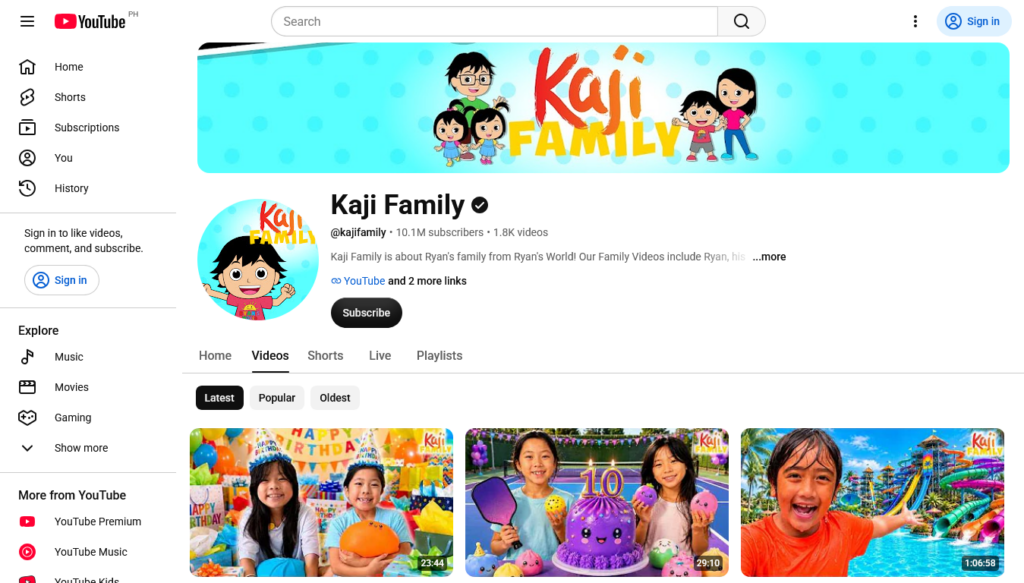
| Lifestyle & Vlogs | Recorded videos showing the creator’s slice of life or travels | Logan Paul, Kaji Family, MrBeast |
| Entertainment | Similar to vlogs, but take the form of sketch comedies (skits) | Key & Peele, The Try Guys |
| Gaming | Let’s Play videos, gaming tutorials, and reviews from gamers | PewDiePie, GeminiTay, Seniac |
| Educational | Videos, often faceless, that educate viewers with facts and trivia | Crash Course, Bright Side |
| Technology | Tutorials and reviews about PCs, phones, cameras, headphones, etc. | Marques Brownlee, SamMobile |
| Music | Music videos with original songs and tutorials on making music | Pianote, BandLab, The Petersens |
Some channels combine two or three formats instead of sticking to one. For example, Katie Steckly‘s channel has a mix of lifestyle vlogs and tech reviews.
If you’re running a blog or podcast, use the Educational format and turn your blog posts or podcasts into videos. If you’re a social media influencer, use the Lifestyle & Vlogs format.
My Recommendation: Pick one format for your channel. Don’t add a second format until you’ve mastered the first one.
Read more: Types of YouTube Channels that Make the Most Money
Step 2: Create Your Channel
It’s now time to create your YouTube channel! You can skip this step if you already have one.
Go to YouTube on your Google account and click the Create or “+” button.
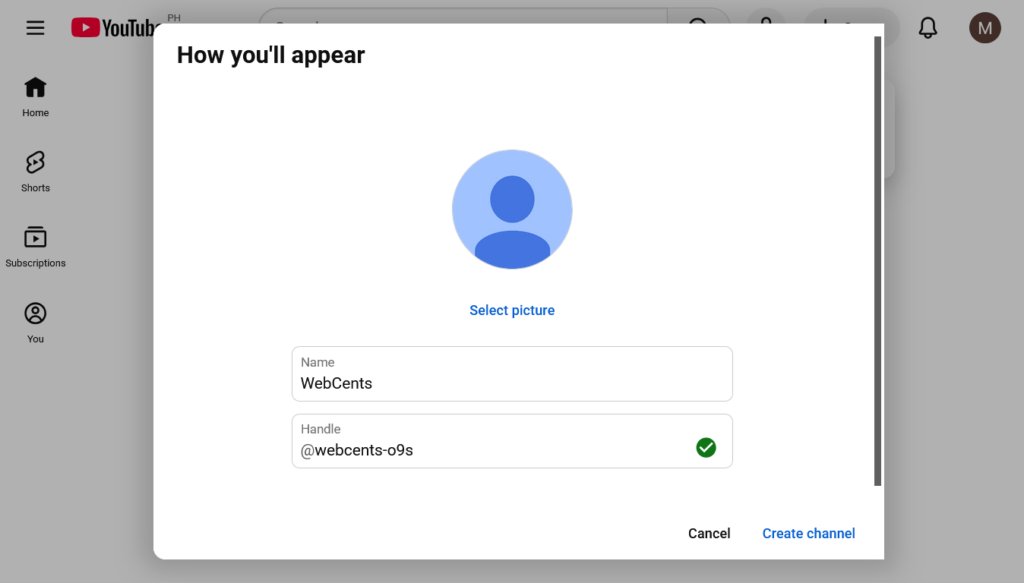
Next, give it a name and a handle:
- You can name it after your real name, or:
- You can also be creative and use a brand name (this creates a Brand Account)
With a Brand Account, you can form a team to help you run your channel.
Step 3: Set Up Your Channel
Now let’s design the look of your channel. You can do this in the YouTube Studio by going to studio.youtube.com or using the YouTube Studio mobile app.
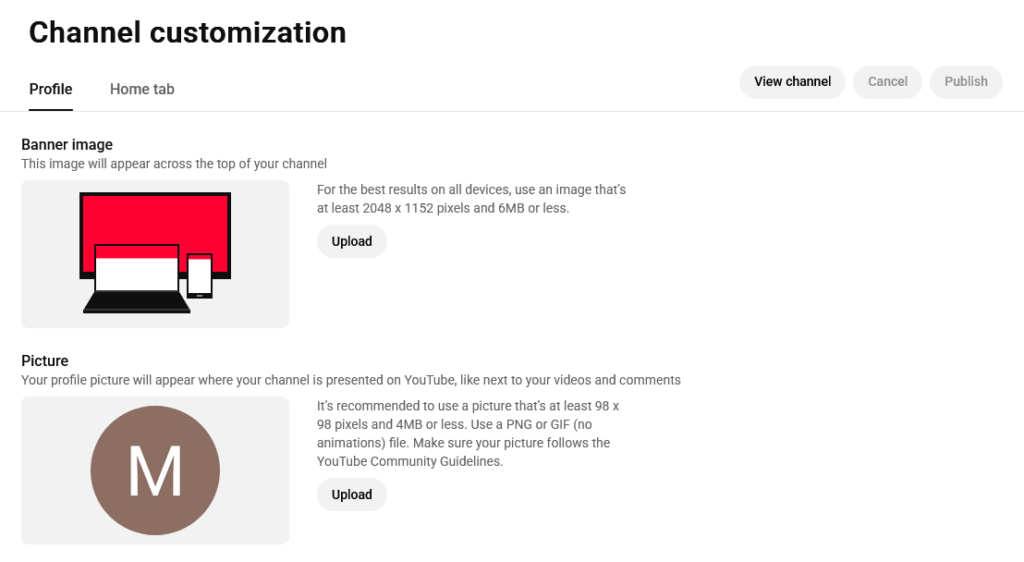
Next, go to the Customize section. There, you can add a banner image (you can make one with Canva) and a profile picture (your portrait or a logo made with Canva). You can also write a channel description and add links to your blog, podcast, or other socials.
That’s it! Your channel is ready for some content!
Step 4: Get Video Ideas
Before you make your first video, you need video ideas. The videos you should make depend on the format you chose in Step 1.
- Lifestyle/vlogs: Easy, film yourself (or your family) doing what you normally do
- Entertainment: Think of creative and fun challenges or situational comedies
- Gaming: Record yourself playing games you enjoy or reviewing games
- Educational: Pick a subject (science, history, finance, etc.) and find topics to talk about
- Technology: Find (or buy) devices and accessories and make tutorials or reviews
- Music: Compose songs and make music videos, or create music lessons
For inspiration, you can search other channels doing the same format as you. Look at the videos they made and see if you can make something similar.
Put these ideas into a list. This will be your backlog when you’re ready to make a video.

Step 5: Follow a Content Strategy
Now it’s time to form a content strategy. This will save you from overthinking and keep you productive.
But first, I will distinguish between filmed videos and narrated videos:
- A filmed video is made of clips you’ve recorded live with a camera or screen recorder
- A narrated video is a slideshow of images and videos (that you capture or import from Pexels) synced with a voiceover of you narrating a script (100% faceless!)
Here’s a sample strategy you can follow for each kind of video. Feel free to optimize it to your liking.
For Filmed Videos
- Pick a video idea from your list.
- Do some research if your video is educational.
- Write a script for your video (optional).
- Prepare equipment for your video.
- If you’re filming, set up your camera, mic, lights, etc.
- If you’re screen recording, set up your PC and OBS Studio.
- Start filming and retake if needed.
- Record or import clips from Pexels to act as B-roll.
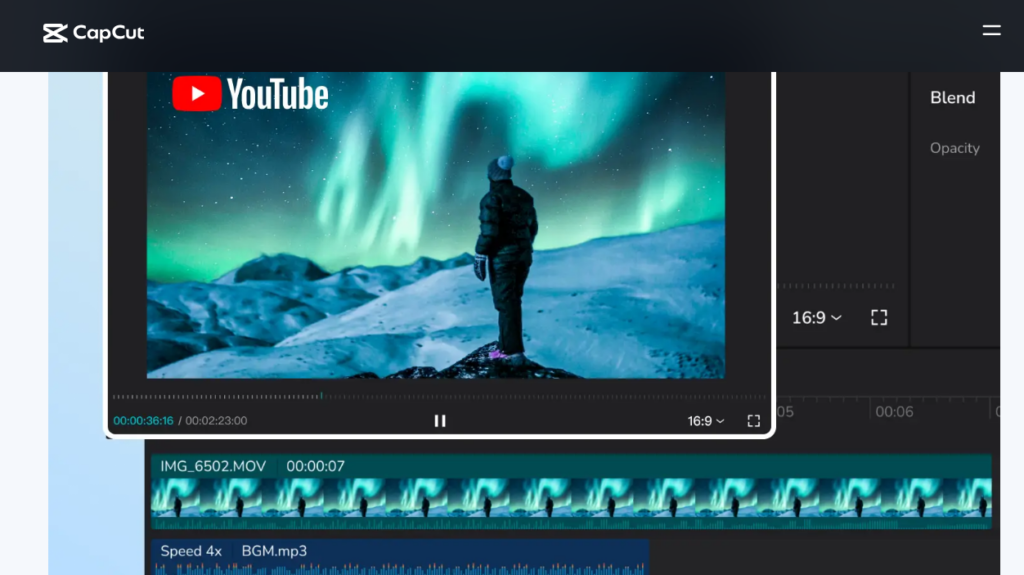
- Edit your video for free with CapCut.
- Export your video.
For Narrated Videos (Faceless)
- Pick a video idea from your list.
- Do some research if your video is educational.
- Write a script for your video.
- Record yourself reading the script with an audio recorder.
- Re-record your narration as needed.
- Take photos and clips, or import some from Pexels.
- Edit your video for free with CapCut (sync photos and clips with your narration).
- Export your video.
My Recommendation: Don’t use AI scripts or voices. You can use AI to help you research, outline, and edit your video, but your recordings should carry your human voice and personality. People go to YouTube to connect with another human, not watch AI slop.
Read more: How to Make Money with a Faceless YouTube Channel
Step 6: Publish Your Videos
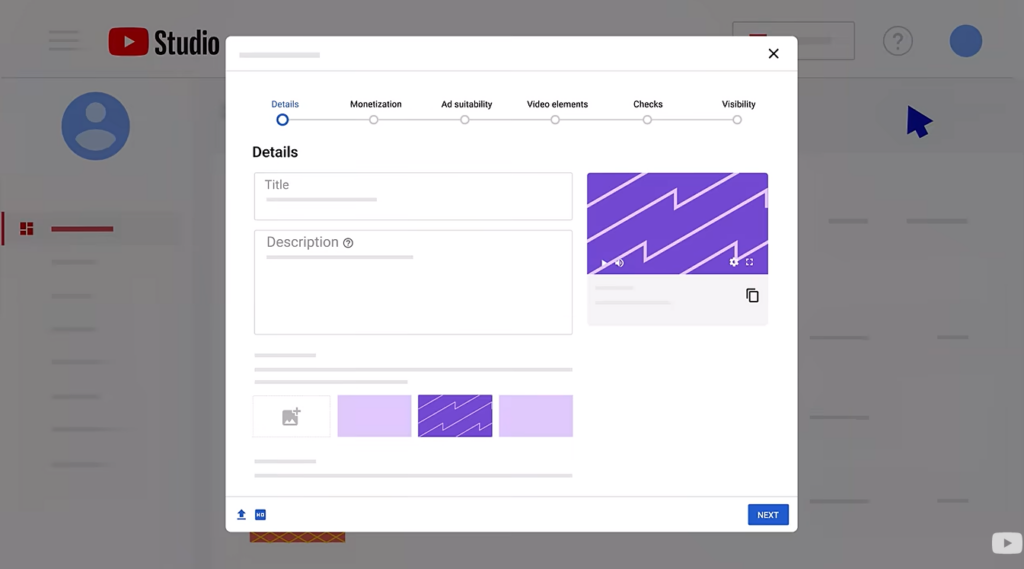
YouTube makes it easy to publish a completed video on the website or mobile app. Just go to Create (or “+“), then Upload video. After uploading your video, you can:
- Add an eye-catching title and write a short description
- Add a thumbnail (a frame from your video or a thumbnail made with Canva)
- Indicate whether your video is made for kids
- Publish your video right away or schedule it for later
To learn more about all the options for your video, see Google’s Upload YouTube Videos page.
My Recommendation: Upload a new video a few times a month to help your channel grow. For faster growth, try to upload once or twice a week! But if you get tired, it’s ok: take a break! It’s better to make quality content than rushed content.
Step 7: Make YouTube Shorts
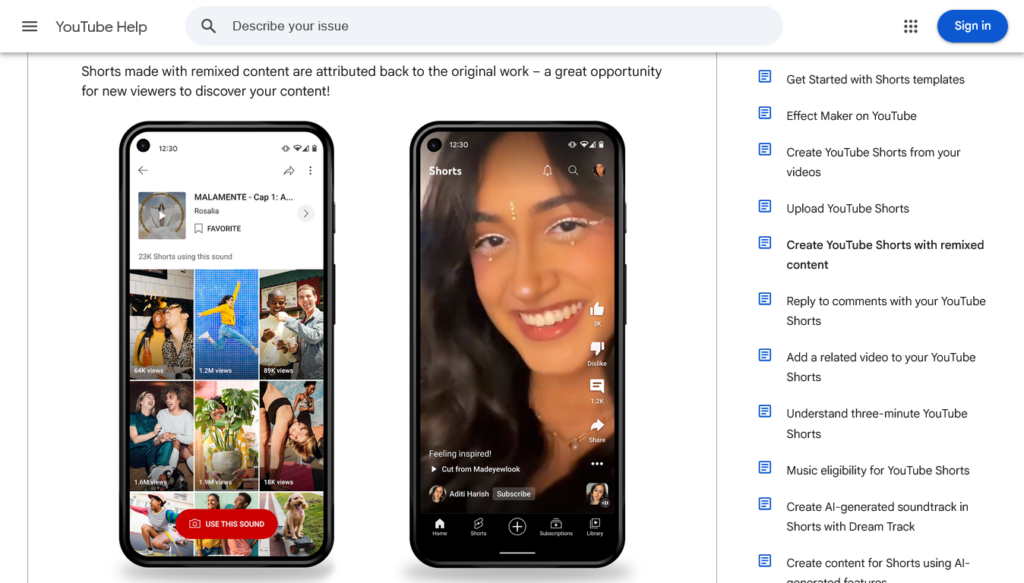
YouTube Shorts, which are YouTube’s short portrait videos, are also popular. You should add a few YouTube Shorts in addition to regular videos. Shorts can be up to 3 minutes long.
There are four ways to make YouTube Shorts:
- Create a short by recording a video from your smartphone
- Remix a video you already have into a short
- Remix someone else’s video into a short
- Upload an edited video as a short
Check out my YouTube Shorts guide to learn how to create and monetize YouTube Shorts.
Step 8: Optimize for SEO
New viewers can find your videos on YouTube, Google, and AI sites like ChatGPT. YouTube’s algorithm may also suggest your videos on the YouTube homepage and sidebar.
You can do SEO (search engine optimization) to make your videos more visible to new viewers. Try these quick YouTube SEO tips:
- Find keywords: Optimize your videos for low-difficulty keywords people are searching for.
- Keep your title simple: Summarize what your video is about in 10 words or less.
- Describe your video: Use the description to provide a bit of video context for Google and AI.
- Add captions: Captions create a transcript, used by Google to know what your video’s about.
- Include hashtags: Add relevant hashtag phrases in the video description.
Check out Yoast’s YouTube SEO guide for more tips.
Once your channel starts getting watch time, it’s time to make money!
Method 1: YouTube Partner Program
Note: Check if the program supports your country before continuing.
The YouTube Partner Program (YPP) is YouTube’s built-in creator monetization program. It’s how the vast majority of YouTubers make money.
The YPP offers six ways for you to monetize your YouTube channel:
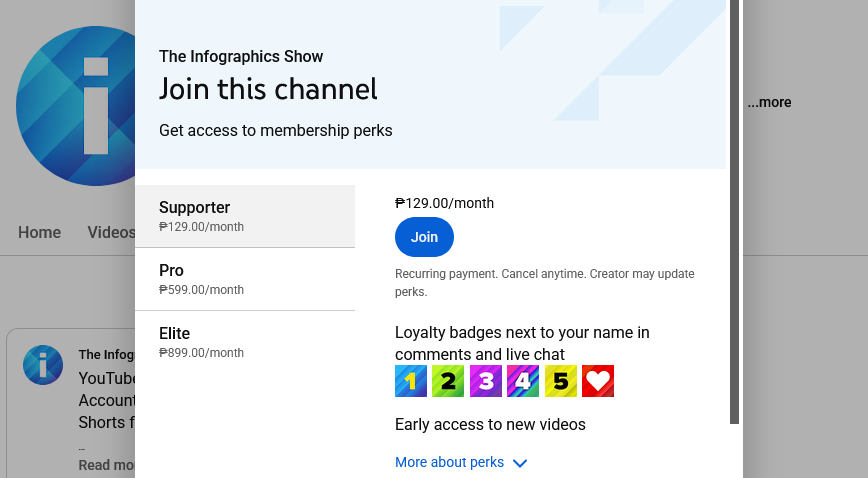
- Membership: You offer custom emojis and other perks to regular donors
- Super Chat & Super Stickers: You accept donations from your livestream viewers
- Super Thanks: You accept donations from commenters
- Shopping: You connect a web store (like Spring) and sell channel merch
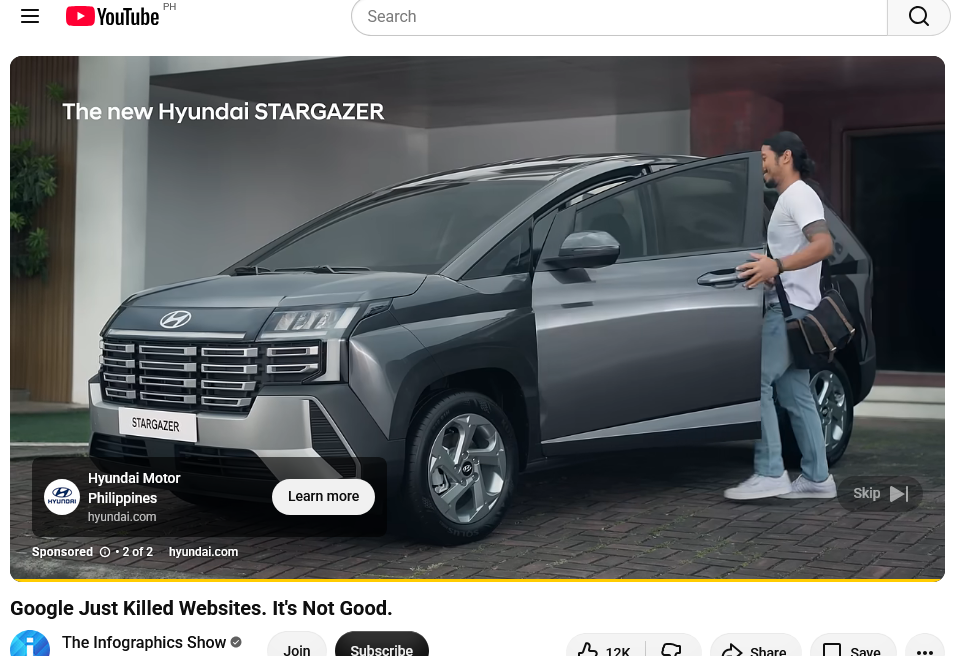
- Ads: You allow ads to appear in your videos
- Premium revenue: You earn when a YouTube Premium subscriber watches your video
Meet the Requirements
Before you begin, make sure your YouTube account is verified, and your Google account has 2-step verification.
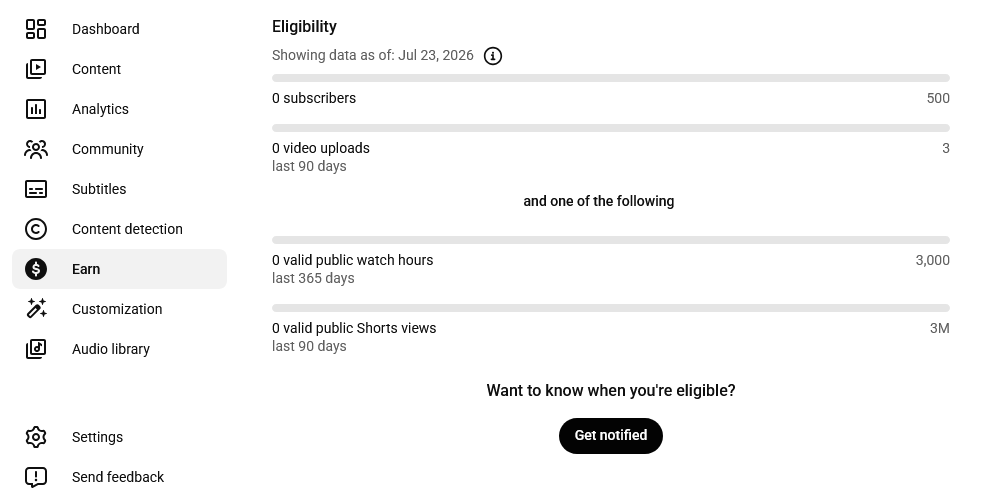
To apply for the YPP and unlock the Membership, Supers, and Shopping features, your channel needs to have:
- 500 subscribers, 3 public uploads in the past 90 days, and either:
- 3,000 public watch hours in the past year, or:
- 3 million public Shorts views in the past 90 days
Later on, your channel will unlock the Ads and Premium revenue features once it reaches:
- 1,000 subscribers and 4,000 public watch hours in the past year, or:
- 1,000 subscribers and 10 million public Shorts views in the past 90 days
Go to the YouTube Studio and select Earn. There, you will find your progress bars for these goals.
My Recommendation: Treat your viewers like friends. Show your personality, stay on topic, and encourage them to like, comment, and share your video. This is the best way to naturally get the numbers you need to join the program!
Apply for the Program
Once you reach the numbers for the Membership, Supers, and Shopping features, you can apply for the YPP!
- Ensure your channel follows the Community Guidelines.
- Go to the YouTube Studio, then click Earn.
- Click the button to apply and accept the program terms.
- Set up your AdSense for YouTube account (this is how YouTube pays you out).
- Choose a payment method: bank transfer (EFT), wire transfer, Hyperwallet, or check.
- Your channel will be reviewed. It may take a month to get approved.
Congratulations, you’re in the YouTube Partner Program!
Enable Membership, Supers, and Shopping
Now that you’re in the YPP, you can manage the Membership, Supers, and Shopping features you’ve unlocked in your YouTube Studio‘s Earn section.
First, sign the agreement for the Commerce Product Module, which governs these three features. After that, you can click Get started for each feature you want to enable.
If you enable Membership and Shopping, you will need to do the following:
- For Membership, create your membership levels (tiers), assign perks, and set prices
- For Shopping, connect your online store and choose what merch to show on your channel
Read more: How to Set Up a YouTube Store and Make Money
Enable Ads and Premium Revenue
Later on, if you reach the higher goals, you will unlock the Ads and Premium Revenue features. Since you’re already part of the YPP, you don’t need to re-apply.
All you need to do is go back to your YouTube Studio‘s Earn section. There, accept the terms for the Watch Page and Shorts Feed monetization modules.
After that, click the On toggle to enable ads for your videos, shorts, or both. Premium Revenue will also be enabled.
YouTube Partner Program Earnings
How much you will make with the YPP depends on the module you activated. YPP earnings are measured in RPM (revenue per mille), which is how much you earn per 1,000 video views.
- For the Commerce Product Module, which includes the Members, Supers, and Shopping features, you get 70% of the revenue sent from viewers.
- For the Watch Page Monetization Module, which places ads on your videos, your RPM ranges between $1 and $15, depending on your content.
- For the Shorts Monetization Module, which places ads between Shorts, your RPM is allocated from a Creator Pool based on how many views your Short got. This means Shorts ads yield a much lower RPM, ranging from $0.01 to $0.10.
- If a Premium subscriber watches your video or Short, you get paid a portion of the monthly membership fee they pay to YouTube.
To see your earnings, go to YouTube Studio, select Analytics, and click the Revenue tab. To manage your payouts, log in to your AdSense for YouTube account.
After a one-time verification, your YPP earnings will be paid out to your chosen payment method each month as long as you meet the payment threshold.
Read more: YouTube Partner Program: What It Is and How to Apply
Method 2: Affiliate Marketing
Affiliate marketing is where you make money recommending other people’s products using affiliate links on your YouTube videos. Whenever someone signs up or buys using your link, you earn a commission.
Here’s an example of a YouTube video promoting smartphones on Amazon using affiliate links.
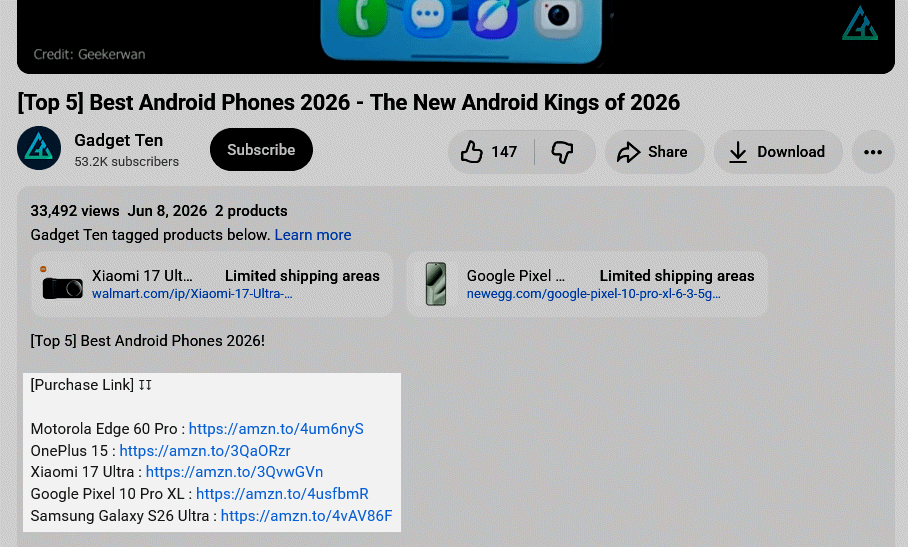
In this section, I’ll walk you through:
- How to find affiliate programs
- How to place your affiliate links
- How to write an affiliate disclosure
- How to track your earnings
Find Affiliate Programs
First, you’ll need to sign up for an affiliate program to receive your own affiliate link.
Most YouTubers use Amazon Associates, a program that allows them to promote anything on Amazon with affiliate links. Other popular affiliate programs used by YouTubers include:
- Airbnb Affiliate Program: stay at an Airbnb and recommend it on your trip vlog
- Honey Affiliate Program: sign up for shopping deals and share your referral link
- Skillshare Affiliate Program: recommend courses for creative writing and art
- Mavely: this site helps you find other lifestyle brands to promote
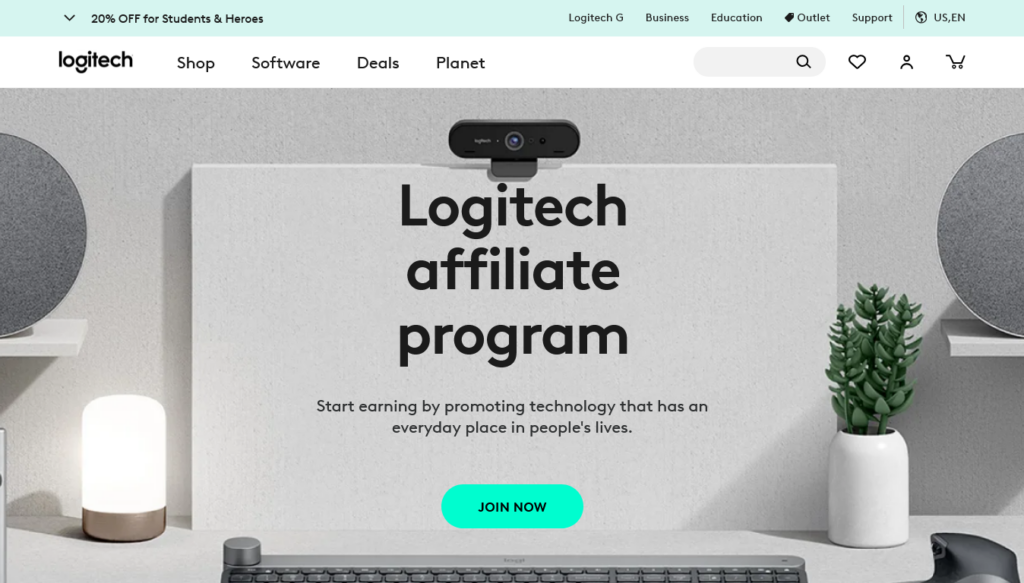
Or, if you know a specific brand you’d like to promote, you can use Google to see if they have an affiliate program. Try entering the brand name + “affiliate.” Make sure it’s the official brand’s website, like this:
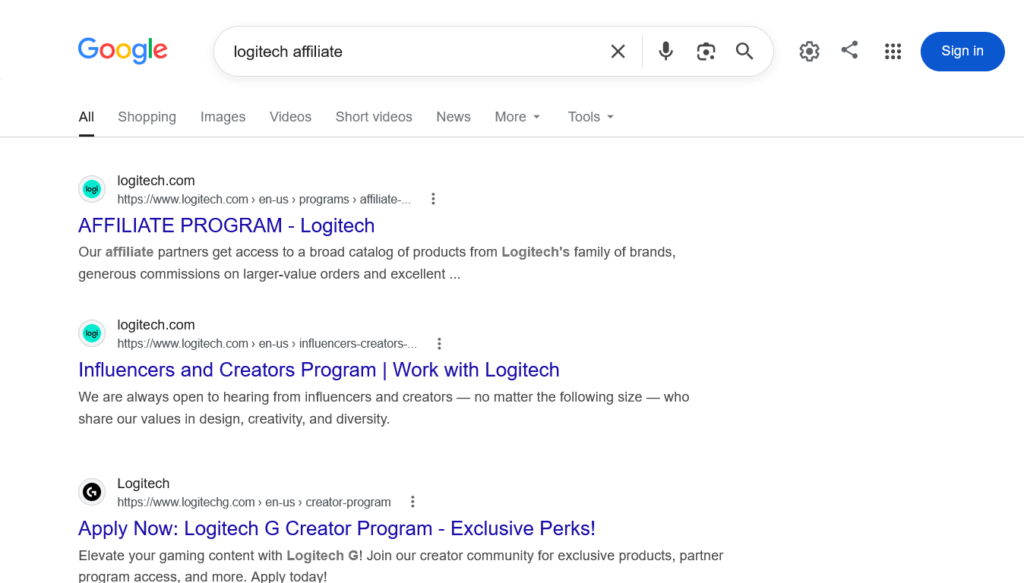
Note that some affiliate programs require a blog or website. So, when searching, make sure they allow you to sign up with a YouTube channel.
Some affiliate programs make you sign up for an affiliate network like Impact or Awin. These networks also have tons of brands you can search for to promote on your next video.
My Recommendation: If you use a moneymaking app, share your referral link. It’s the same thing as an affiliate link. If you think your viewers would enjoy the app you’re using, add your referral link to your YouTube video and get paid in-app each time someone signs up!
Place Affiliate Links
To get your affiliate link, log in to the affiliate program or the app you’re promoting. You can save your affiliate links into a text file for easier access.
Before adding your link, mention in your next video the brand you’re promoting. I suggest recording yourself using or showing the brand so viewers can understand why you’re recommending it. Tell them to find your affiliate link in the video description.
Then, when uploading your video, paste your affiliate link in the description. If the link looks ugly, use a link shortener like TinyURL to make it look cleaner.
Affiliate Disclosure
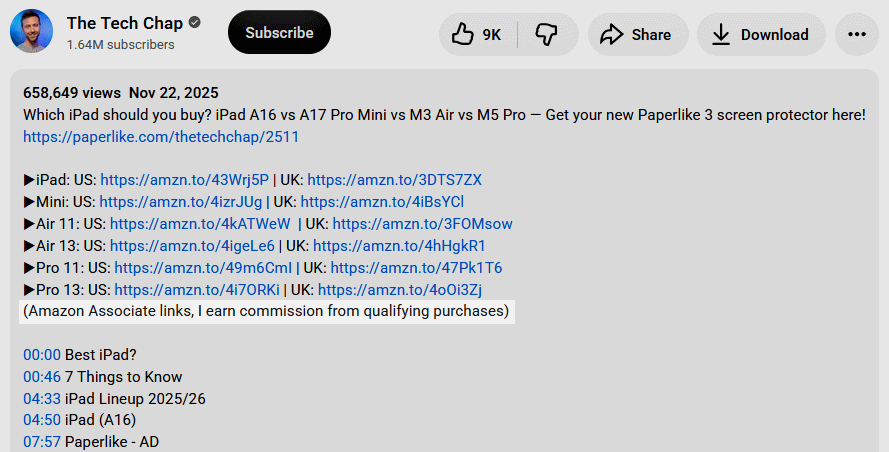
You should also add an affiliate disclosure. This is required by the US Federal Trade Commission (FTC) to ensure that readers know what will happen when they click an affiliate link.
In your video description, place it near your affiliate links where viewers can easily see it.
Here’s an example of a simple affiliate disclosure:
Disclosure: These are affiliate links. If you click any of these links and make a purchase, I may earn a commission at no cost to you.
Note that if you’re promoting Amazon products, the Amazon Associates agreement requires you to say something like: “As an Amazon Associate, I earn from qualifying purchases.“
Your Affiliate Marketing Earnings
How much you will earn from affiliate marketing depends on the product you’re promoting. Some affiliate programs, like Amazon Associates, pay you for anything the viewer buys with that link, not just the specific product you’re promoting.
Log in to your affiliate dashboard. There, you should see how much you will earn for getting a sale or sign-up on a product using your link. If you see a percentage, that’s your commission rate, and it tells you the percentage of the product price that you earn.
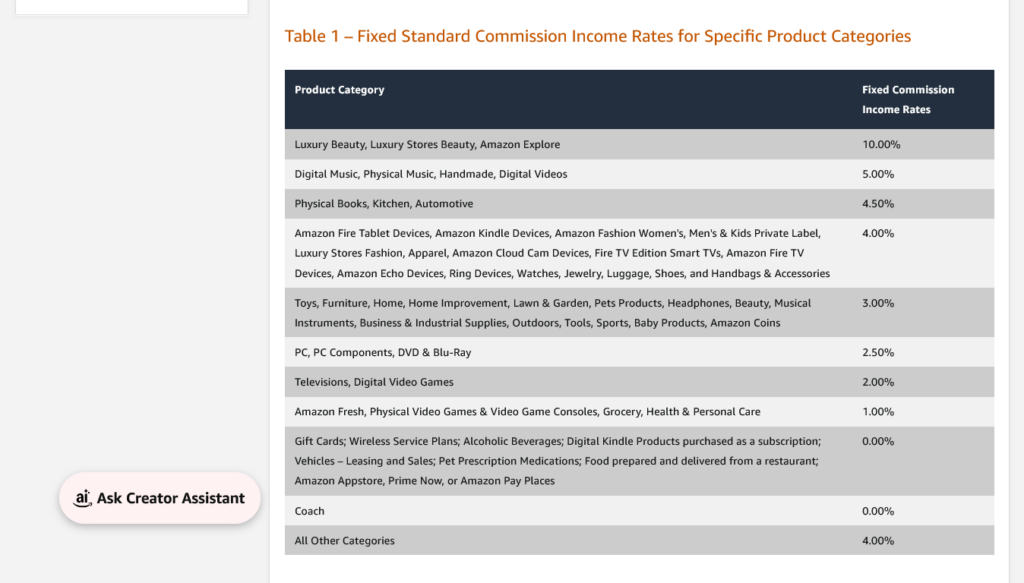
Most affiliate programs pay via bank transfer, while others can pay via PayPal. You usually get paid every month when you reach a certain threshold. To know for sure, check your affiliate dashboard.
Typically, physical products pay you 5-15% of every sale or sign-up made, while digital products or services can pay you 10-50%.
Read more: How to Make Money on YouTube with Affiliate Marketing
Method 3: Sponsored Videos
A sponsored video is a video you make on behalf of the brand sponsoring you. This helps the brand find customers from your audience. Unlike affiliate marketing, sponsorships pay you for every video you create rather than every sale you make.
Many YouTubers make sponsored videos, like this one for NordVPN:
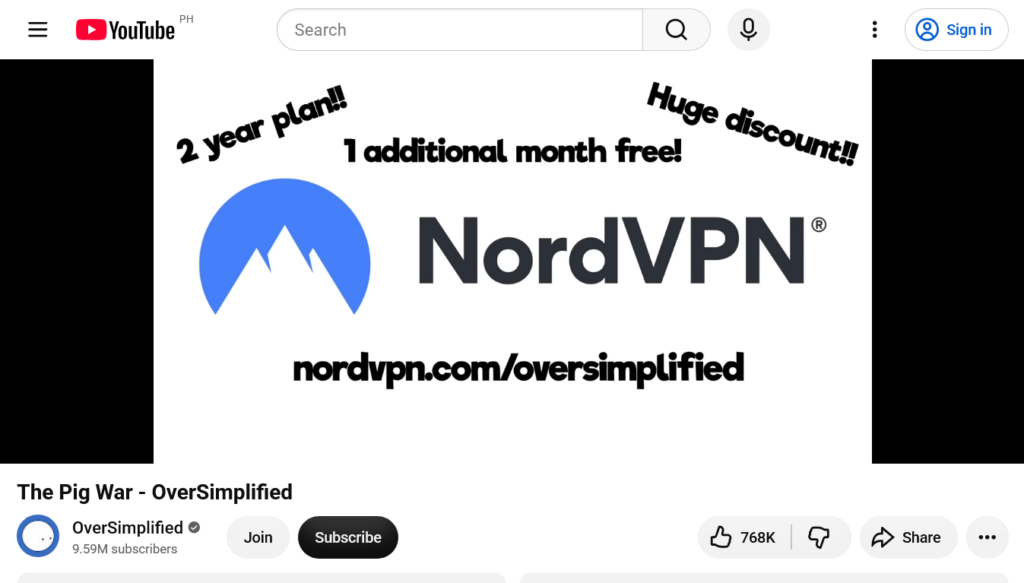
One way to find a brand that will sponsor you is through an influencer network. This site connects creators like you with brands who want to sponsor YouTube videos.
Here are some you can try:
| Name | Payout methods |
|---|---|
| Collabstr | PayPal, Cash App, Venmo, bank transfer |
| Intellifluence | PayPal only |
| Upfluence | PayPal or bank transfer |
| Later | Stripe only |
| Aspire | PayPal only |
| IZEA | PayPal only |
Follow these steps to make a sponsored video:
- Sign up for the influencer network.
- Connect your YouTube channel to your profile.
- Pick a brand to work with or wait for a brand to select you.
- If you agree to the sponsorship, make the video according to their criteria.
- Edit your video and upload it to YouTube.
- Once published, submit your video to the brand for approval and get paid.
Depending on the brand, you can earn $50 to $100 per video. If you get more followers, you can earn up to $500 per video!
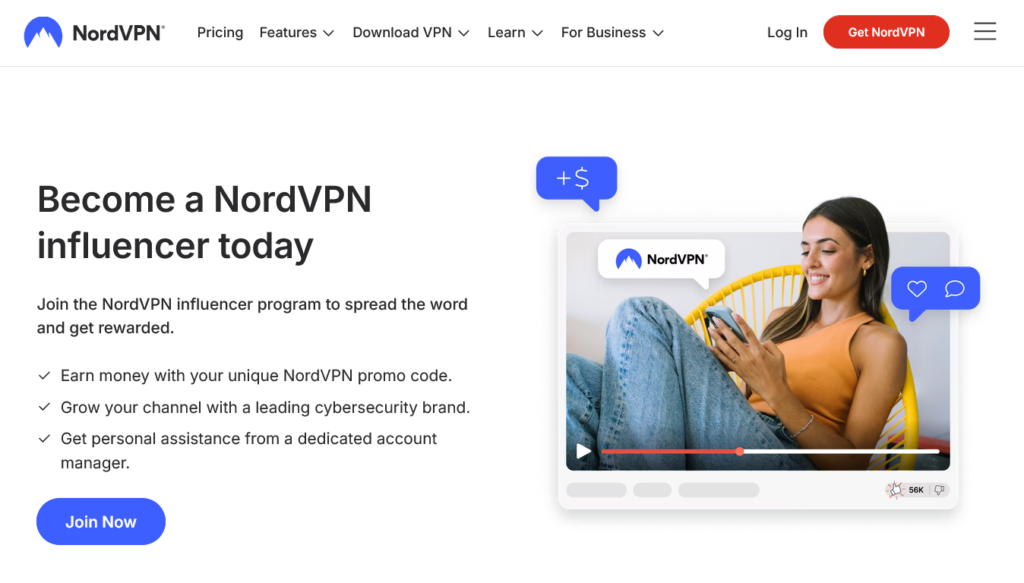
My Recommendation: Check if your favorite brand has an influencer program. Go to Google and type the brand name + “influencer program.” For instance, NordVPN has an influencer program.
Method 4: Patreon Community
Starting a Patreon community is another way many YouTubers (and other content creators) make money. You might have heard a channel giving a shout-out to their Patreon members.
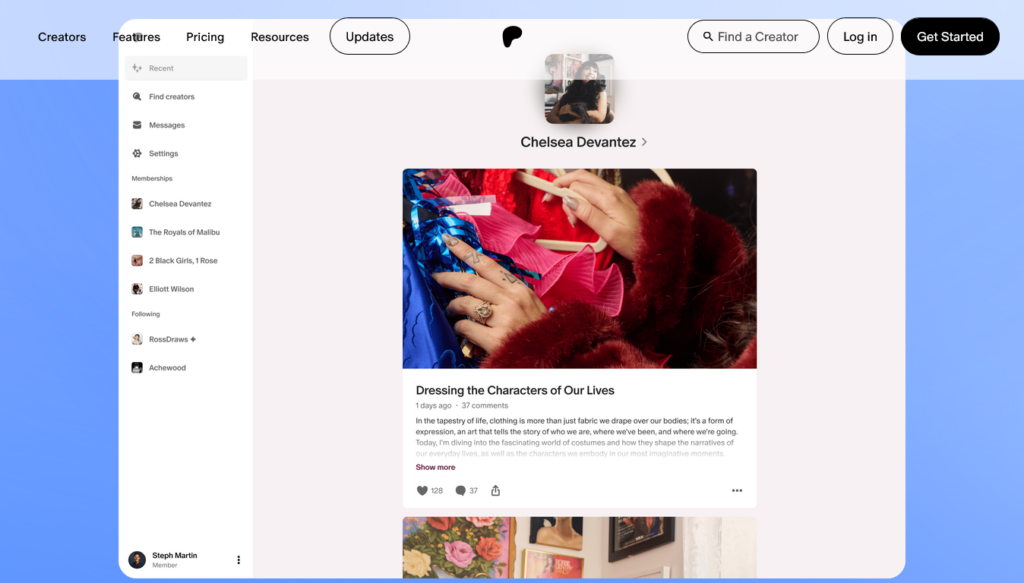
Running Patreon is similar to running a YouTube channel membership. As a creator, you offer membership tiers with special perks (called “benefits” on Patreon) to those who pay you monthly.
Every YouTuber on Patreon has a page where they can write posts and sell exclusive content. Here’s what a Patreon page looks like.
In this section, I’ll show you:
- How to create a Patreon page
- How to offer membership tiers
- How to promote your Patreon page
- How much money you will earn
Create a Patreon Page
Here’s how you can start your own Patreon page:
- Create a Patreon account here. Or, if you already have one that you use to support your creators, click your profile at the bottom and choose Create on Patreon.
- Use your YouTube name as the name and URL for your page.
- Select Videos and other stuff you create.
- Follow the instructions to finish setting up your page.
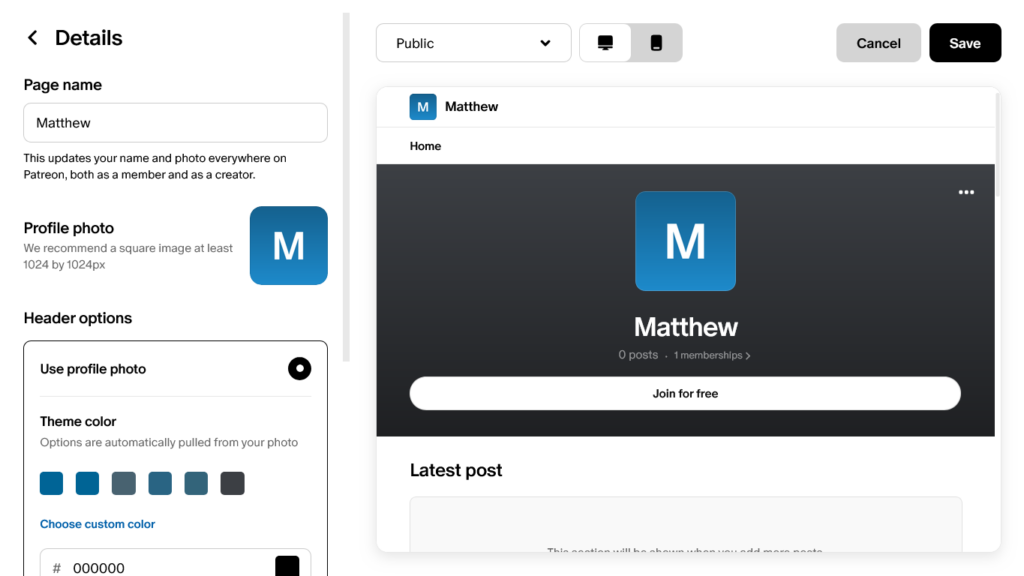
You will now see your Patreon page ready for you to set up. Click Edit page at the top right to customize your page with your name, bio, colors, social links, navigation menu, and post layout. To add a post to your page, click Create a post.
You can access your page anytime by clicking your profile at the bottom.
Offer Membership Tiers
It’s time to add your membership tiers!
Go to your Patreon dashboard and select Memberships. There, you can set your price and add your tier’s benefits. Here are some benefits that are popular on Patreon that you can consider adding:
- Paid posts with channel updates and early access to videos
- Shout-out to members in your videos
- Unlisted live streams you share with paying members
- A private invite link to a Discord community
You can also select Advanced to send gifts to your members’ addresses, limit how many members can join, or add exclusive Discord server roles.
You can create as many tiers as you want, but I suggest having no more than 6 tiers to keep your fans’ decision simple.
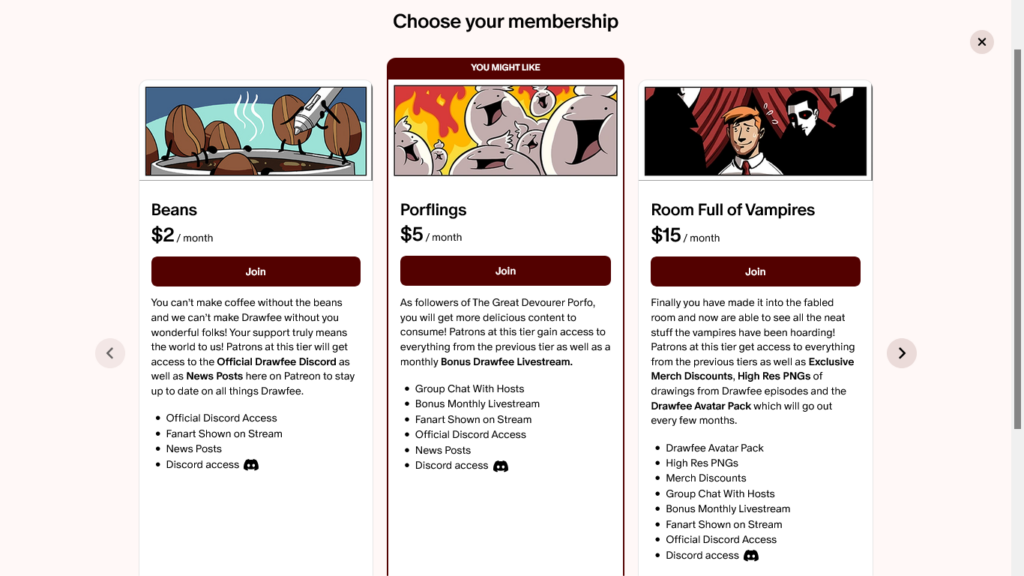
Now, when your fans click the Upgrade button on your page, they will see your list of tiers like this:
Promote Your Patreon
Now that your page is set up, it’s time to promote it in your YouTube videos. Follow these tips to help you make your Patreon page a success:
- Mention your Patreon at the end of your future videos
- Provide a link to your page in the video description
- Give your paying members the benefits you promised
- Write a few posts for free members so they don’t feel left out
- Sell access to exclusive content so your free members can support you without subscribing
Your Patreon Earnings
You will receive your earnings after these fees are applied:
- A 10% Patreon fee for membership revenue
- A 5-12% Patreon fee for shop purchase revenue
- A payment processing fee for some members
- A currency conversion fee if a member pays in a currency different from yours
- A fee to send payments to your payment method
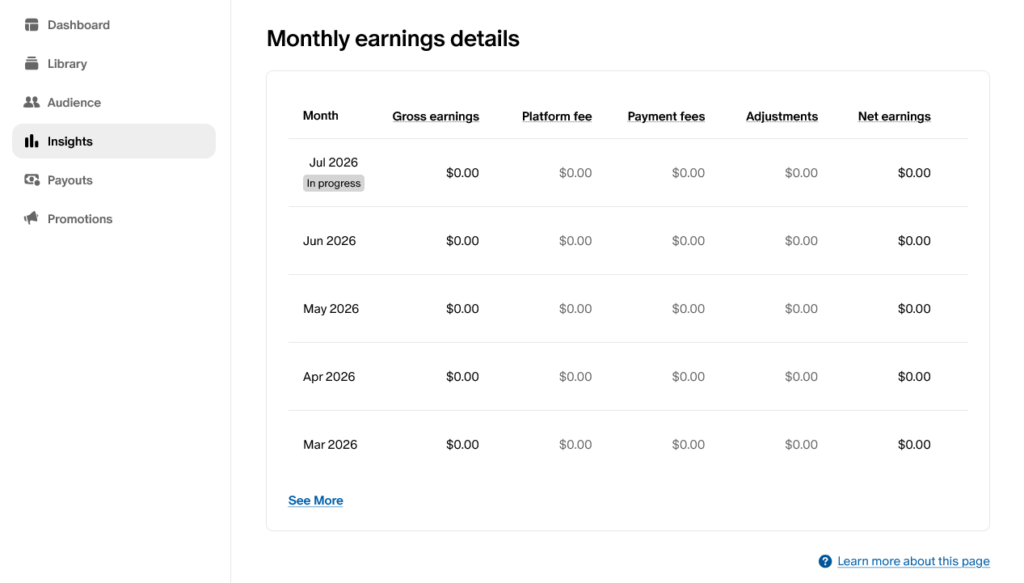
In your Patreon dashboard, go to Insights > Earnings. At the bottom is a table showing your gross earnings, the fees applied, and the net earnings to be paid to you.
Depending on where you are, you can get paid via PayPal, Payoneer, or bank transfer. You can pay out anytime or have Patreon automatically pay you out on the 5th of every month.
Read more: How to Make Money on YouTube with Patreon
Free Alternatives to Patreon
While Patreon is a popular choice, its 10% fee plus processing fees can be a bit too much. Here are two more free community platforms to receive fan payments while keeping more of it:
| Platform | Big features | Payout methods | Fees applied to your earnings |
|---|---|---|---|
| Ko-fi | Lets you accept tips and take commissions; offers donor alerts during livestreams | PayPal or Stripe | 5% + small PayPal/Stripe fees |
| Buy Me a Coffee | Simple dashboard, send emails to members, mobile app available | Stripe only | 5% + small Stripe fees |
Keep in mind Stripe is only available in these countries.
Method 5: Email Newsletter
Note: this method requires a Stripe account. Check if Stripe is available in your country.
You can make money sending newsletters and other exclusive stuff to your viewers via email. The easiest way to make money with emails is by running sponsored ads. When someone clicks an ad, you get a commission.
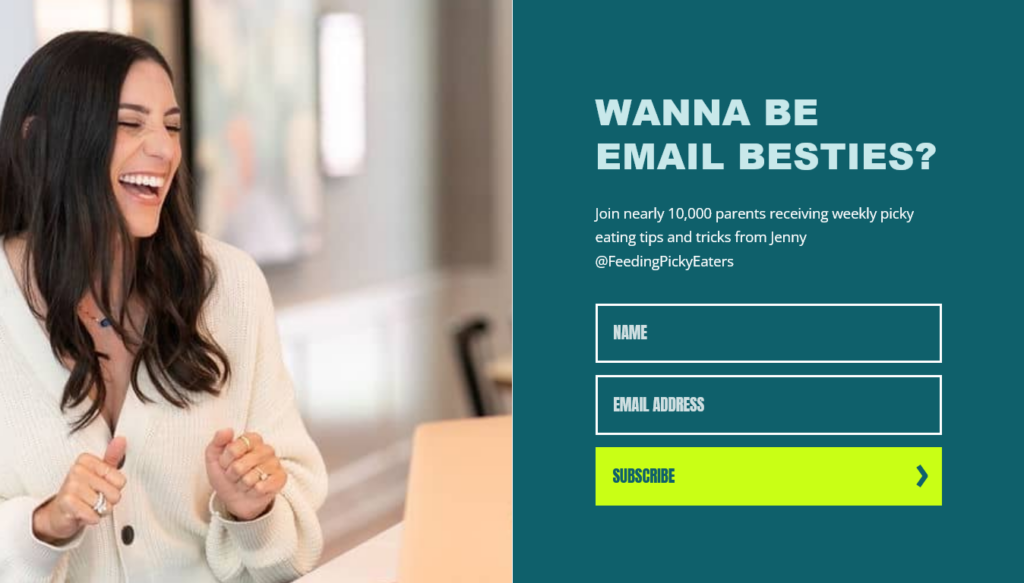
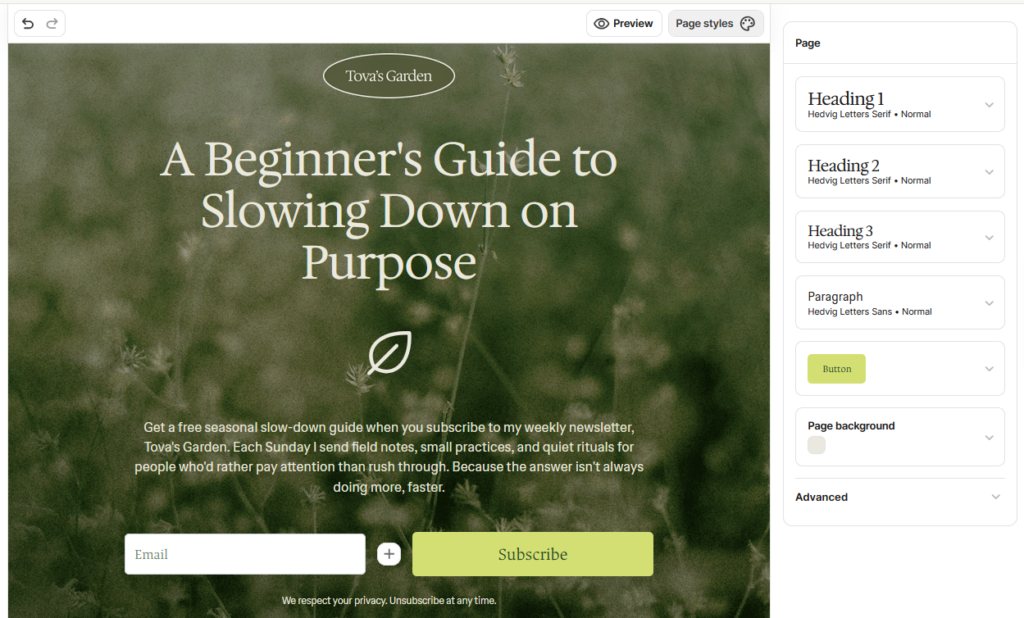
To get viewers into your email list, you need a landing page. This page will have an opt-in form where you can advertise your newsletter or a free lead magnet you made (like a valuable ebook or checklist). When people sign up, they are added to your email list.
Here’s what that page looks like.
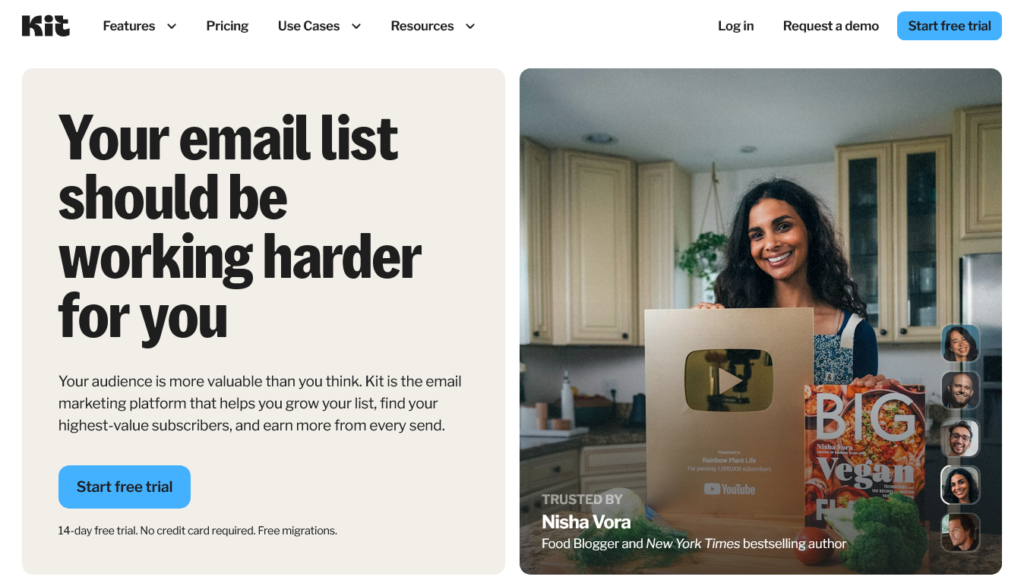
Use Kit for Your Email List
All you need is a program to set all this up. I suggest using Kit, and here’s why:
- They cater to YouTubers and other influencers
- They are simple to learn and offer a clean dashboard
- They give you your own landing page, no website needed
- They offer a 14-day free trial of their Creator plan, no credit card needed
Use my affiliate link below, click Start free trial, and create your Kit account to get started.
My Recommendation: After the trial, downgrade to the free Newsletter plan! It has everything you need to do this tutorial. Once your list grows, consider upgrading to the $33/month Creator plan.
Your Welcome Email
Let’s start writing the email your new subscribers will see.
- Sign up for Kit if you haven’t already.
- Go to Automation > Email Sequences.
- Write a nice subject line like “You’re in, welcome!”
- In the body, thank your subscriber (and add a link to your lead magnet if you have one).
- Schedule the email to be sent “0 days after last email.”
If you’re on the free Newsletter plan, you’ll need to make the welcome email in Broadcasts and send the email manually.
Design Your Landing Page
Now you need a landing page. You will add a link to this page in your video description for people to sign up. Here’s how to make your landing page:
- Go to Audience Growth > Landing Pages & Forms.
- Add a new landing page and pick a template.
- Design your page to your liking.
- Advertise your newsletter and tell subscribers what they can expect.
- Click Publish and copy the link to your landing page.
- Add the link to your video description to start promoting your newsletter.
Send Your Email Updates
Once you get some of your subscribers into your email list, it’s time to send emails. Go to Broadcasts to write an email. You can send it right away or schedule it to be sent at a later time.
I suggest sending an email once a week (or at least 3 times a month).
Monetize with Sponsored Ads
Ready to insert a sponsored ad and make money? Here’s how:
- Set up payments on your Kit account.
- Go to Earn > Newsletter Sponsorships.
- Select “I’m interested” on a brand you want to promote.
- If the brand emails you back, accept or decline the offer.
- If you accept, set a date for your sponsor email.
- Write an email and include a Sponsorship content block.
- Explain to your readers why this brand can help them.
- Schedule the email to be sent on the date of the offer.
And that’s it! You’ll earn for every ad click you get.
On average, you can earn $1 to $2 per ad click. Payments will be sent via Stripe 45 days after the end of the month when the ad was running.
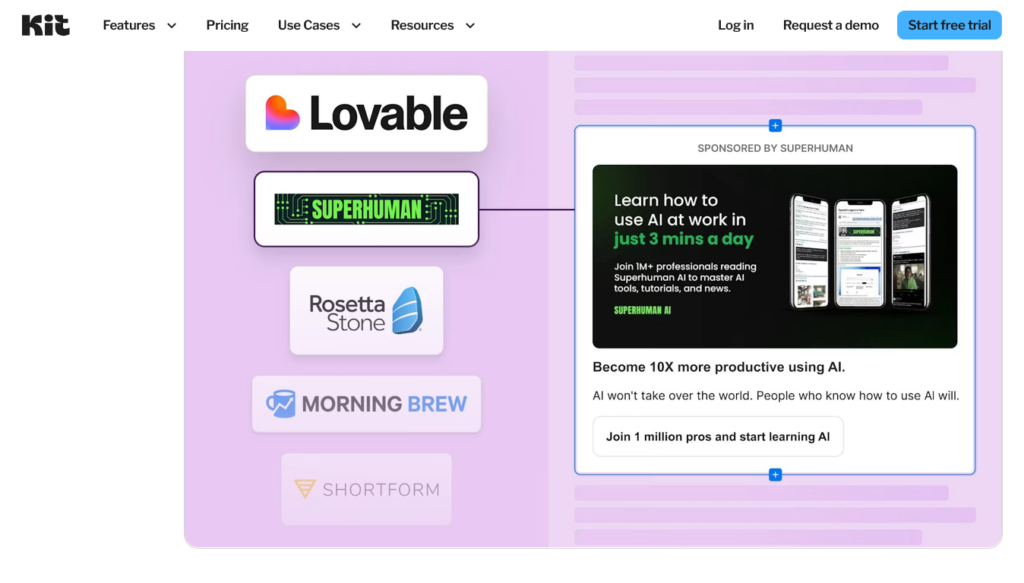
Besides sponsored ads, Kit also lets you make money selling digital products and being part of their Creator Network. But overall, as a beginner, ads are the simplest way to make money with Kit.
Method 6: Selling a Course
An online course is a set of lessons you sell to your viewers. These lessons can teach a skill that you’re very good at.
To sell an online course for free, I recommend Udemy.
Instead of giving you your own course website, Udemy lets you upload video lessons onto their own site. This makes it super simple for you to make a course!
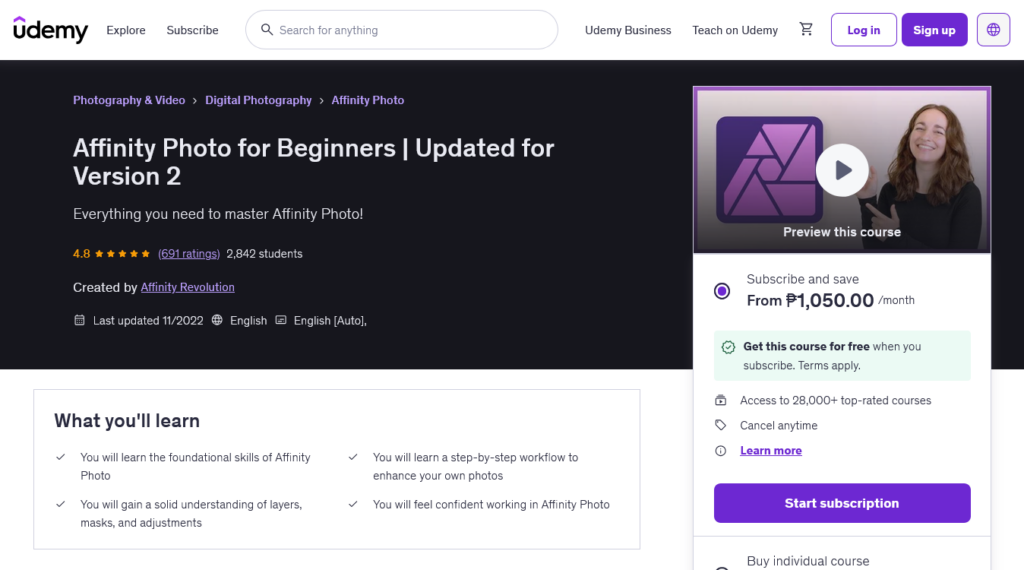
To get started with your online course, follow these steps:
- Sign up as a Udemy instructor.
- Make an outline for your course.
- Submit a test video for review.
- Start filming your video lessons.
- Upload them to Udemy.
- Apply to become a Premium instructor.
- Set a fair price for your course.
- Publish your course if you’re satisfied.
- Use coupons to promote your course on YouTube.
Udemy will pay you 97% of the sale every time someone uses the coupon to buy your course. But if someone on the Udemy marketplace finds your course, you get 37% of the sale. You can see how much Udemy pays you here.
Udemy pays you out via PayPal, Payoneer, Tipalti, or US (ACH) bank transfer.
My Recommendation: Use Skillshare instead of Udemy if your niche is more creative. Like Udemy, they let you record videos and sell them as a course on their website. Skillshare’s library includes graphic design, animation, videography, photography, and web design.

Conclusion
Now you know how to make money on YouTube as a beginner. It’s time to join the thousands of YouTubers making an online living!
Is YouTube Right for You?
As good as YouTube is, it’s not for everyone.
If you’re just camera-shy, you could make faceless YouTube videos instead!
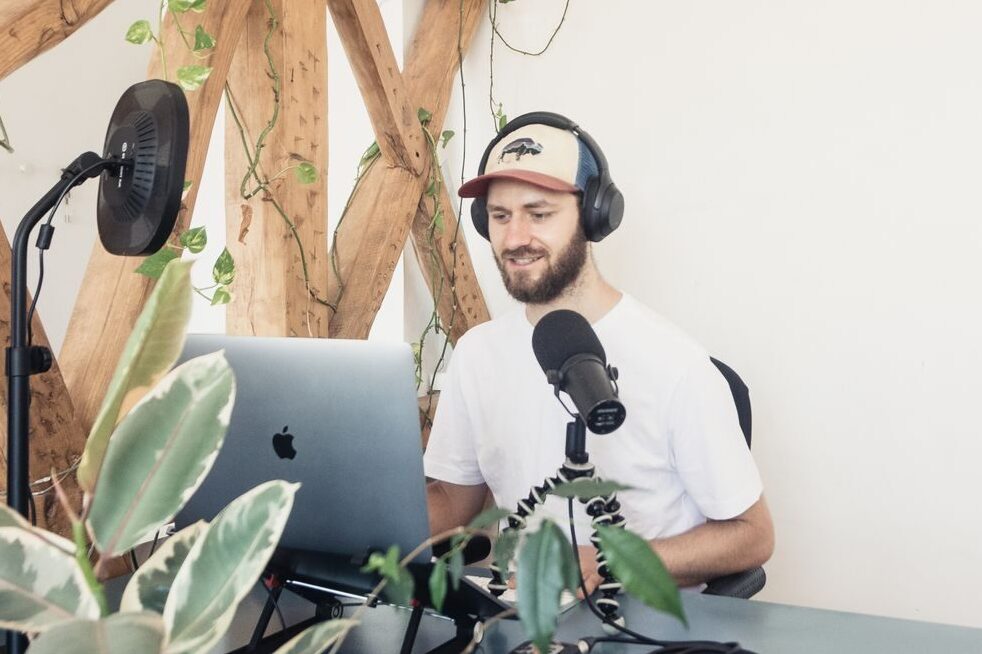
Or better yet, you can make money starting a podcast. Here’s why:
- You don’t need to show yourself or make a single video
- All you need is a mic, a quiet room, and a good script
- That way, people will only hear your voice
Visit my Podcasting Guide to get started!
Beginner Guides
For other ways to make money online, check out my other guides:
Thanks for reading and happy earning!
FAQs About YouTube
If you’re running ads via the YouTube Partner Program, you can earn between $1 and $15 for every 1,000 views on your video.
No, because YouTube is a video-sharing platform. However, some sites will pay you to watch YouTube videos. Just keep in mind that the pay is very low compared to making videos.
To offer memberships, Super Chats, and merch on your channel, you need 3,000 watch hours in the past year or 3 million Shorts views in the past 90 days. To run ads, you need 4,000 watch hours in the past year or 10 million Shorts views in the past 90 days.
The amount you make on YouTube depends on several factors: how many people see your ads, how many buy your membership on YouTube or Patreon, how many affiliate sales you make, etc.

Hey, it's Matthew! I enjoy computers, so when I discovered making money online in 2017, I knew I had to try. Over time, I made hundreds of dollars taking surveys and doing user testing. Today, I continue looking for simple ways to earn online and share what I learn here on WebCents.